Text cannot be selected, tables are trapped in page images, and copied content loses structure.
Scanned PDF OCR converter
Scanned PDF to Word with layout preserved
Upload an image-based PDF and get an editable DOCX that keeps tables, paragraphs, and page structure close to the original scan.
Scanned PDFs
OCR to DOCX
Tables and forms
Layout preservation
- OCR for image-only PDFs
- Editable DOCX
- Up to 50 pages per job

Why users choose it
Built for the files ordinary PDF converters struggle with
Most PDF converters work well only when text is already selectable. ScanDoc Word helps with image-based pages, classroom worksheets, contracts, invoices, and tables that need OCR first.
OCR recognizes text and rebuilds paragraph flow, tables, headings, and page order into DOCX.
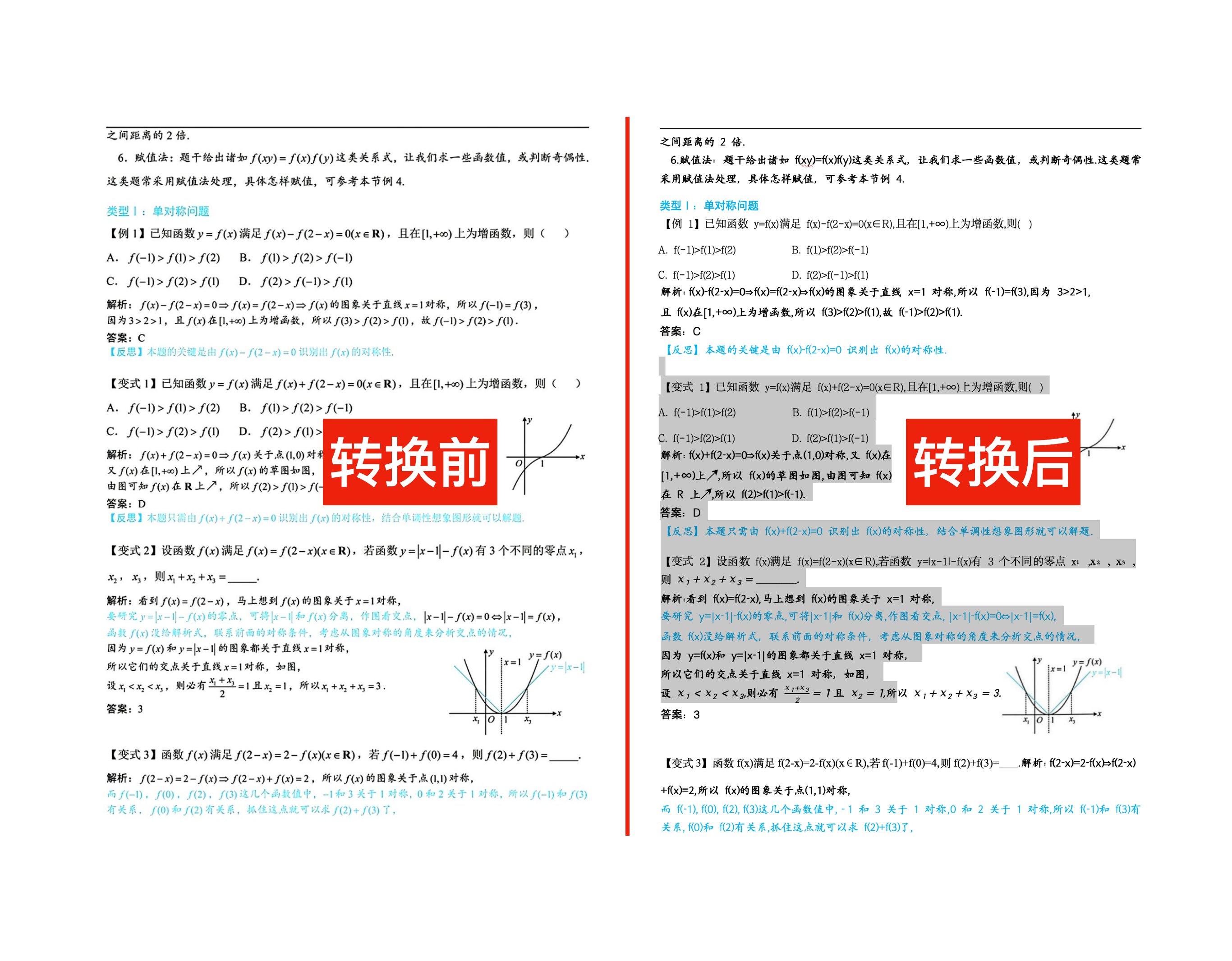
For PDFs over 50 pages, choose a page range and create multiple jobs instead of overloading the converter.
Show users the upload, conversion, and download state in one place so the workflow feels predictable.
Let users test selected pages first. This lowers risk and makes the quality difference visible.
Start converting
Upload a scanned PDF
Upload a scanned PDF, choose the pages you need, and convert it with the same OCR workflow used by the app.
- 1Upload PDF
- 2Choose pages
- 3Convert and download
Recent conversions
Your job history
No conversions yet.
How it works
From scanned page to editable DOCX
Quick answer
Use this page when the PDF text is not selectable. Upload the scanned PDF, run OCR, rebuild the layout, then download an editable Word document.
Upload PDF
Choose a scanned or image-based PDF and let the converter analyze the page count before creating a Word task.
Run OCR
The system extracts text from page images and prepares structure for a Word document.
Rebuild layout
Paragraphs, tables, and visual order are reconstructed as editable DOCX content.
Download Word
When the job is complete, download the generated Word file from your history.
Why scanned PDF conversion is different
A normal text PDF already contains selectable text. A scanned PDF is usually just page images. That means a good converter must first recognize text, then rebuild the original page structure in Word. This is why generic PDF conversion often loses formatting on scanned documents.
Best files for this converter
Clean scans, typed documents, tables, contracts, invoices, academic papers, and worksheets are good candidates. Handwriting, heavy shadows, extreme rotation, or very low-resolution pages may reduce OCR accuracy.
What to check after conversion
- Text accuracyReview names, numbers, dates, and totals first because OCR mistakes often matter most there.
- Table structureCheck merged cells, faint borders, and multi-line rows in invoices or financial documents.
- Reading orderReview multi-column documents, headers, footers, and footnotes after the Word file is generated.